Introduction
Keeping your Battery Tester's firmware and bootloader up-to-date is essential for optimal performance and access to the latest system enhancements. The Check for Update function on the INNOVAPRO BA201 Battery Tester allows users to seamlessly check for updates and upgrade the device directly via internet connection (Over-the-Air Upgrade). By regularly checking for updates, professionals can ensure their diagnostic tool operates with the latest bootloader and firmware version, leading to accurate evaluations and improved stability.
Procedure
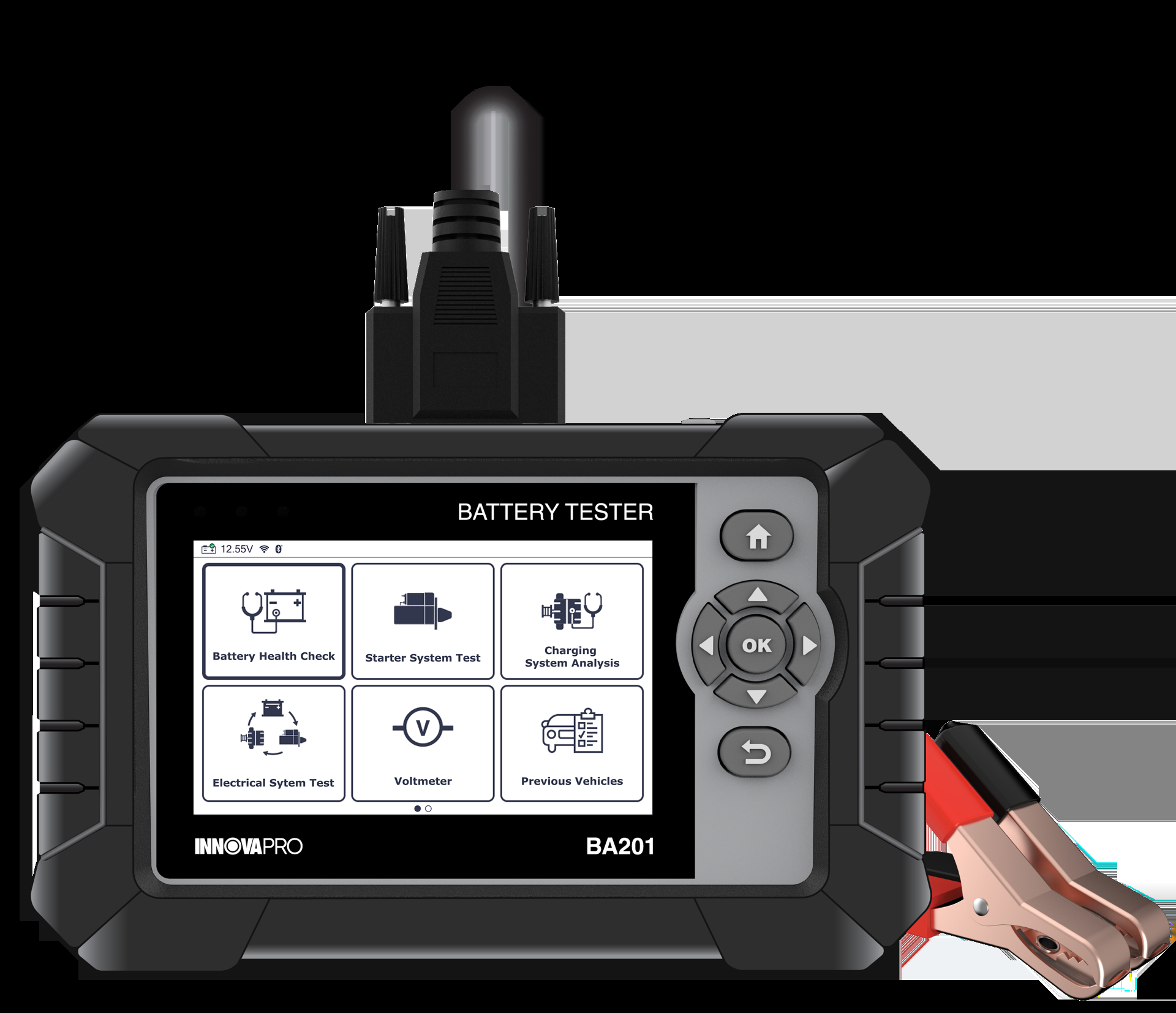
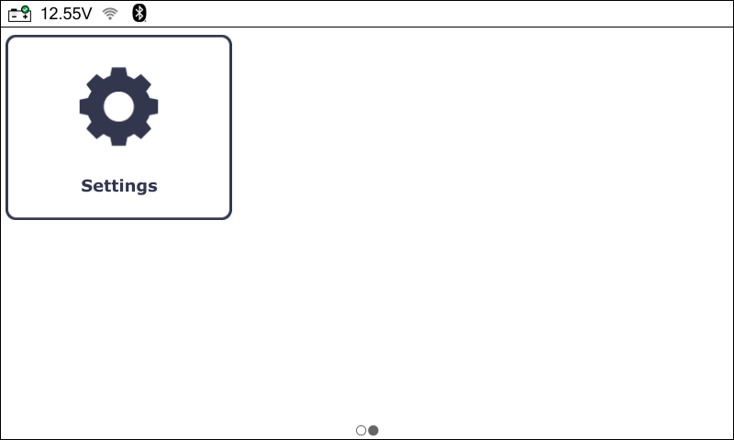
Step 1: From Home Screen, locate and select the Settings button.
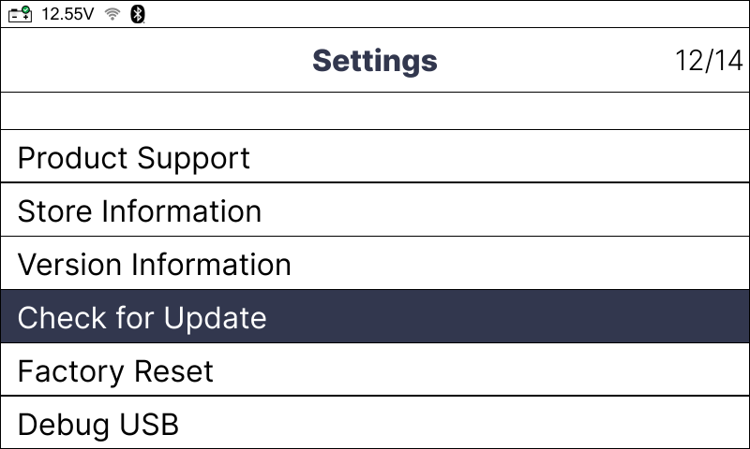
Step 2: From the Settings menu, select Check for Update.
Step 3: A notification message displays confirming the internet connection and asking to start checking for updates. Select the Continue button to proceed.
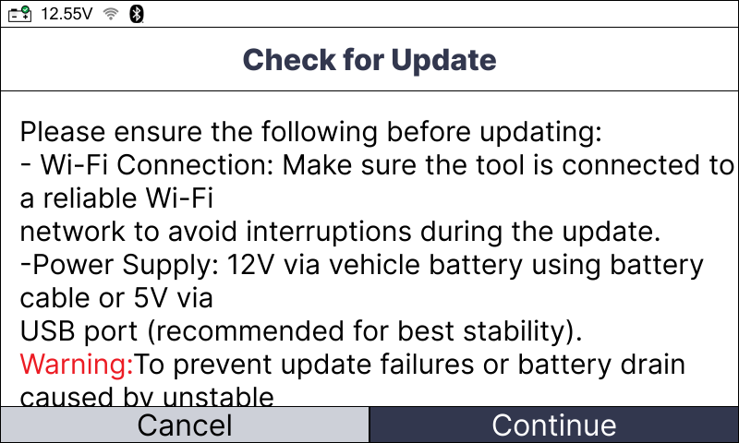
NOTE: Before starting the update, ensure the tool is connected to a stable Wi-Fi network and powered by either 12V via the vehicle battery or 5V via a USB port. For best stability and to prevent update failures or battery drain, using a 5V USB power source is strongly recommended.
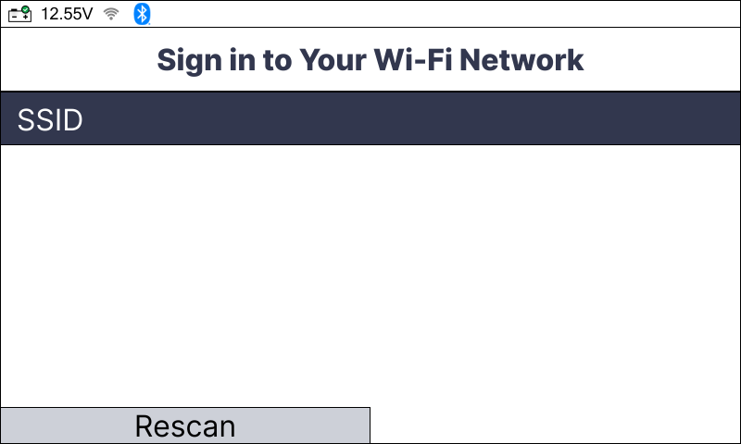
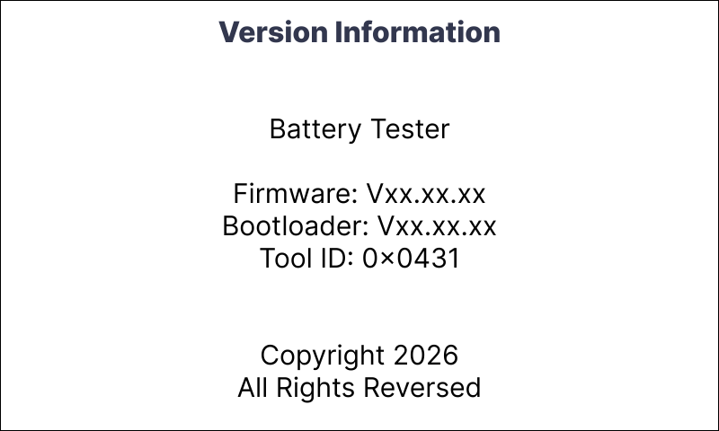
Step 4: If an update is available, the Battery Tester displays the current version along with the new version available for update. Proceed to Step 5. If no update is available, the message “No update available” displays.
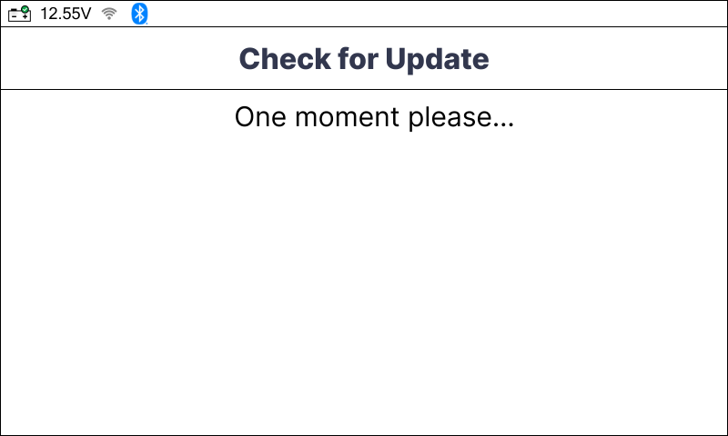
Step 5: Select the Continue option to start the update process for the Battery Tester. Then wait for the installation to finish.
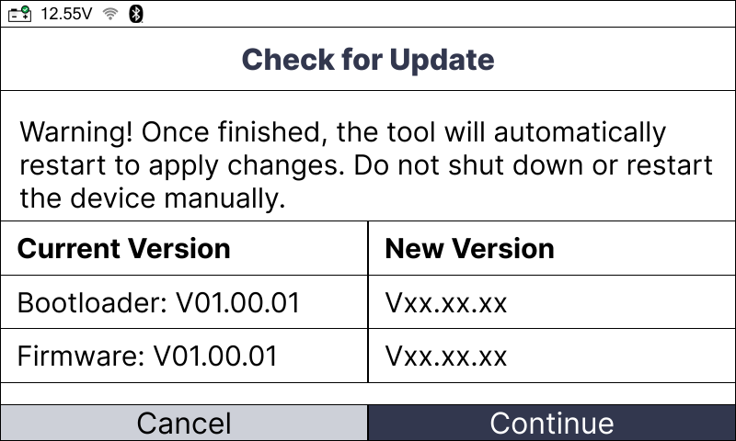
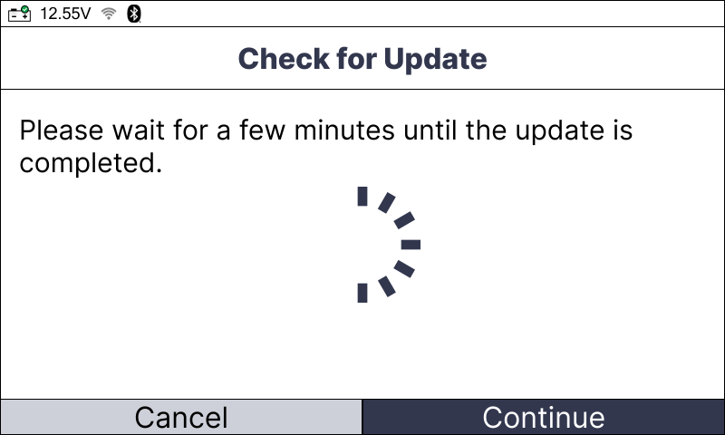
Step 6: If the update is successful, the Battery Tester automatically restarts to apply the changes. If an error occurs during the update, a warning message displays. Follow the instructions in the message to attempt the update process again.
Conclusion
In summary, performing an Over-the-Air firmware and bootloader upgrade is a straightforward yet crucial maintenance step. By ensuring a stable Wi-Fi connection and following the recommended 5V USB power guidelines, users can effortlessly prevent update failures and keep their Battery Tester equipped with the latest features and reliable performance updates.


