Introduction
The Innova 7111: Smart Diagnostic System (SDS) Tablet enables to perform all functions supported on Fiat, Chrysler, Dodge, RAM, Jeep, and Alfa Romeo (FCA) models from 2017 and earlier. Starting with the 2018 models, a Secure Gateway Module (SGW) was implemented in the electrical architecture to secure the vehicle’s network and control access. This module is similar to a firewall that prevents unauthorized vehicle network access, which may put vehicle systems and customers at risk. SGW implementation will restrict certain functions:
- Erase Original Equipment Manufacturing (OEM) Diagnostics Trouble Codes (DTCs)
- OEM Special Functions/Active Tests
- Workshop Tools (Resets, Relearns, Routines, Calibrations)
Therefore, this article will guide users on how to unlock the FCA SGW and perform restricted functions while using the Innova 7111 SDS tablet on the 2018 Dodge Challenger.
Procedure
Step 1 – Make sure the Innova 7111 SDS tablet is up to date by installing the latest firmware
NOTE: Ensure the Innova 7111 SDS tablet is installed with software version V1.96.1 or later.
First, connect the Innova 7111 SDS tablet to the vehicle to retrieve the vehicle's information, such as the Vehicle Identification Number (VIN) and model. Then, select the feature “Settings”. | |
NOTE: Make sure Innova 7111 SDS tablet is connected to Wi-Fi throughout the process. Scroll down and check for the version. Tap “Check for Updates” to check and download the latest version.
|
Step 2 – Register for an authorized AutoAuth account
First, go to https://webapp.autoauth.com/ and select “Register” to create an account. | |
Fill full the individual information and select “Signup” | |
Once created, verify the account via the email used to sign up. | |
Next, log in to AutoAuth’s portal using the account just created. | |
When choosing the “For Service Centers & Independent Technicians” account plan, the AutoAuth charges a base annual fee to use the AutoAuth service. NOTE: If choosing the “For Technicians” account plan, the account must be added by “Service Centers & Independent Technicians” account to use the AutoAuth service. | |
AutoAuth charges a base annual fee to maintain the AutoAuth service. [QN2] [LT3]
After choosing the “For Service Center or Independent Technicians” account plan, there are information and payment must be completed before using the service. | |
| |
Then, enter the username in “ENTER USERNAME” correctly and select “Search For User” (1). Wait a minute, the screen shows the name of the user that is added. Select the “Send Request To User” (2).
| |
After accepting the request, the new user will show up on the list of “Shop Users” and can use diagnostic tools registered with the shop. |
Step 3 – Register the device
Tap “Settings” to view and copy the tool’s serial number. | |
On the AutoAuth account, navigate to “Manage Tools”, select “Innova Electronics” as the manufacturer, then select “All Models” under model and enter the tool’s serial number in hand. Tap to the “Add Tool” to complete the process and the Innova 7111 SDS tablet is SGW ready. |
Step 4 – Unlocking the FCA SWG
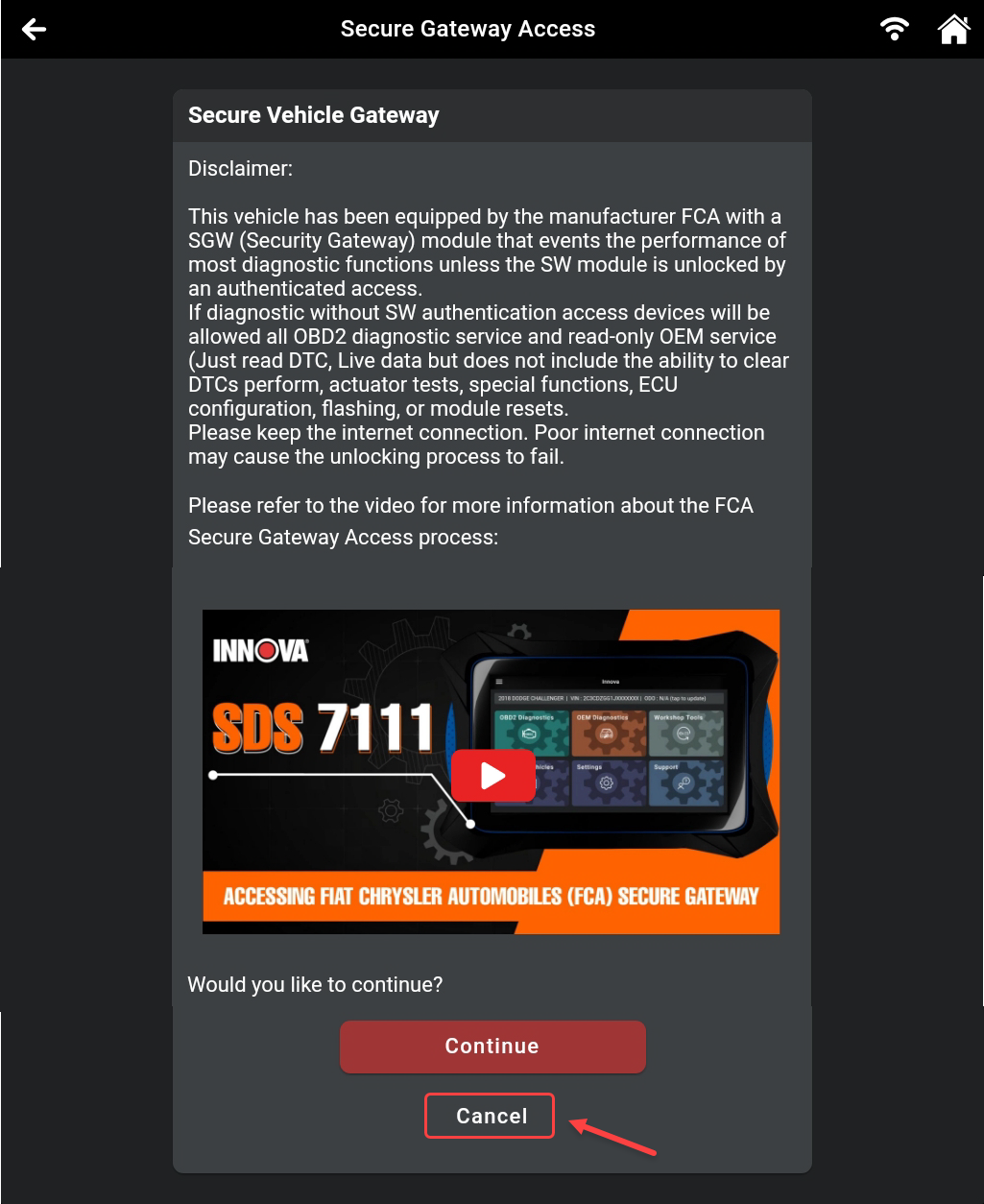
For FCA vehicles with SGW equipped, a "Secure Gateway Access" message will pop-up once tapping into “OEM Diagnostics” or “Workshop Tools” tab.
Select the “OEM Diagnostics”. NOTE: A constant Internet connection is required. Poor internet connection may cause the unlocking process to fail. | |
The Innova 7111 SDS tablet will show “Secure Gateway Access” pop-up. Scroll down and tap “Continue” to login the account. | |
Next, proceed to login using the existing AutoAuth login credentials by selecting “Continue” (3). Alternatively, it is possible to create a new account by tapping “New User” (2) if having an account not registered yet. Tap “Remember me” (1) to save the Username and Password for the next login. | |
Wait a few minutes and the scan tool will show the result of the connection. NOTE: Connection may be unsuccessful if the user has exceeded their API calling threshold. After that, perform all functions as casual. |
The above steps are an example procedure when performing all functions including “Erase OEM DTCs”, “OEM Special Functions/Active Tests” and “Workshop Tools (Resets, Relearns, Routines, Calibrations)” on vehicles applied feature SGW.
NOTE: In case of NOT using the functions such as “Erase DTCs”, “Active Tests” and “Special Functions” in “OEM Diagnostics” or “Workshop Tools”, please the procedure below:
When the screen “Secure Gateway Access” pop-up, | |
After that, select “Continue without unlocking SGW”. | |
At this time, other functions such as “Read DTCs” and “Live Data” in “OEM Diagnostics” can be accessed.
|
Reference Video
(98) Innova 7111: How to access FCA Secure Gateway - YouTube
[QN1]Please help me add the circle and arrow for the “User Profile” same as the Service Center account
[QN2]Add the information:
When choosing the “For Service Centers & Independent Technicians” account plan, the AutoAuth charges a base annual fee to use the AutoAuth service.
NOTE: If choosing the “For Technicians” account plan, the account must be added by “Service Centers & Independent Technicians” account to use the AutoAuth service.
[LT3]updated
[QN4]After choosing the “For Service Center or Independent Technicians” account plan, there are information and payment must be completed before using the service.
[LT5]updated
[QN6]Remove the “Additionally,”
[LT7]updated
[QN8]The image is missing the Back button
[LT9]updated
[QN10]Remove
[LT11]updated